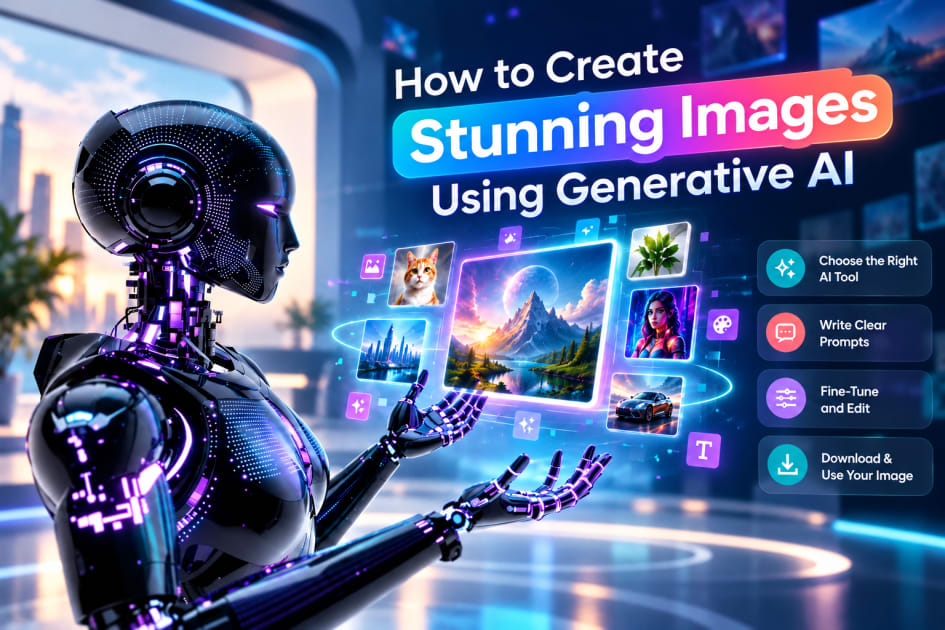
You can create stunning images using generative AI by choosing the right AI image generator, writing a detailed prompt that covers subject, style, lighting, and composition, generating multiple variations, and polishing your favorite result with editing tools. You don't need a design degree, a camera, or expensive software. You need a clear idea and a repeatable process.
This guide walks you through that process step by step. You'll learn how text-to-image tools work, how to write AI art prompts that get professional results, how to fix common problems, and how to use your images responsibly.
What Is Generative AI Image Creation?
Generative AI image creation uses machine learning models, most commonly diffusion models, to turn a written description into an original image. This is known as text-to-image generation. During training, the model studies enormous numbers of images paired with text descriptions and learns the visual patterns behind concepts like "sunset," "oil painting," or "minimalist logo." When you type a prompt, it assembles a new image from those learned patterns rather than copying an existing picture.
Most modern tools also support image-to-image generation, where you upload a reference picture and ask the AI to transform it, extend it, or restyle it. Many also include built-in editing features such as inpainting (changing part of an image) and outpainting (extending the canvas).
The quality of your results depends on three things: the tool you choose, the clarity of your prompt, and how well you refine the output. Master those three, and you'll get far better images than most beginners.
Why Learn to Create AI Images?
People use generative AI for far more than novelty. Common uses include:
Blog and social media visuals without relying on generic stock photos
Marketing and advertising concepts that can be tested quickly
Product mockups and packaging ideas before investing in a photoshoot
Book covers, game art, and storyboards for creators and indie teams
Presentation graphics and educational illustrations
Personal art projects and creative experimentation
The biggest advantage is speed. Work that once took hours of design or photography can now be drafted in minutes, which lets you explore more ideas before settling on one.
The 7-Step Process to Create Stunning Images Using Generative AI
Follow these seven steps in order. Each one builds on the last.
Step 1: Define Your Goal Before You Type
The most common reason people get disappointing results is that they start typing before they know what they want. Spend two minutes answering these questions:
What is the image for? A blog header, a poster, and a profile picture have different needs.
What format do you need? Square, wide, or vertical?
What feeling should it create? Calm, energetic, luxurious, playful?
Does it need to include text or people? These are harder for AI and may need extra attention.
A clear goal makes every later decision easier, from the tool you pick to the words in your prompt.
Step 2: Choose the Right AI Image Generator
Different tools have different strengths. Here are the main categories:
Midjourney: Popular for artistic, painterly, and highly stylized visuals.
DALL·E and ChatGPT image generation: Strong at following detailed instructions and handling text inside images.
Adobe Firefly: Designed for commercial workflows, with tight integration into Photoshop and Illustrator.
Stable Diffusion: Open-source and highly customizable, ideal if you want full control and are comfortable with a steeper learning curve.
Google's Imagen and Gemini image tools: Good for photorealism and conversational editing.
There's no single "best" AI image generator. If you want artistic flair, try a stylization-focused tool. If you need commercial-safe workflows, prioritize platforms with clear licensing. If you want total control, look at open-source options.
Features, pricing, and licensing terms change frequently, so check each platform's current plans and terms before committing, especially for commercial projects. Try the free tier or a trial of two tools using the same prompt, and compare the results side by side.
Step 3: Learn the Anatomy of a Great AI Art Prompt
Vague prompts produce generic images. Strong AI art prompts give the model specific direction across several dimensions:
Subject: The main focus of the image. ("a red fox sitting on a mossy rock")
Setting or action: What's happening and where. ("in a misty pine forest at dawn")
Style or medium: Photograph, watercolor, 3D render, oil painting, anime, vector illustration, pencil sketch.
Lighting: Golden hour, soft studio light, neon glow, candlelight, dramatic side lighting.
Composition and camera: Close-up, wide shot, overhead view, low angle, shallow depth of field, 35mm lens.
Color palette and mood: Warm pastels, moody blues, high contrast, calm and dreamy.
Quality cues: "highly detailed," "sharp focus," "cinematic," "editorial photography."
Weak prompt: "a fox in a forest"
Strong prompt: "A red fox sitting on a mossy rock in a misty pine forest at golden hour, soft backlighting, shallow depth of field, photorealistic, warm color palette, wide shot, highly detailed."
The strong version removes guesswork. The model doesn't have to decide on style, lighting, or framing, so you waste fewer generations.
A note on word order: Many tools give more weight to words near the beginning of a prompt. Put your most important elements first, usually the subject and style.
Step 4: Use a Simple Prompt Formula
If you're unsure how to structure a prompt, start with this template:
[Subject] + [Action or setting] + [Style] + [Lighting] + [Composition] + [Mood]
Here are examples for different use cases:
Product shot: "A matte black ceramic coffee mug on a marble countertop, morning window light, minimalist product photography, close-up, shallow depth of field, clean and modern."
Fantasy illustration: "A lone knight crossing a glowing crystal bridge above a storm, digital painting, dramatic backlighting, wide cinematic shot, epic and mysterious."
Blog header: "A cozy home office with a laptop, plants, and warm desk lamp, flat vector illustration, soft pastel colors, wide composition with empty space on the left for text."
Portrait: "Portrait of an elderly fisherman with weathered skin, overcast coastal light, 85mm lens, shallow depth of field, documentary photography, quiet and dignified."
Notice the blog header example asks for empty space on one side. Designing for your final use, such as leaving room for a headline, is a technique professionals use constantly.
Save the formulas that work for you. A personal library of proven prompts is one of the fastest ways to improve and to keep a consistent look across projects.
Step 5: Generate Variations and Iterate
Your first result is rarely your best. Experienced creators treat AI image generation as a loop, not a one-shot request:
Generate several versions of the same prompt.
Pick the strongest and identify what works about it.
Change one element at a time, such as lighting, angle, or style, so you can see exactly what caused the difference.
Use variation or remix tools to explore close alternatives of a promising image.
Repeat until the image matches your goal.
Small, deliberate tweaks beat rewriting the entire prompt each time. If you change five things at once, you won't know which change helped.
Keep brief notes on your best prompts and settings. Over time you'll notice patterns, like which lighting terms work well in your favorite tool or which style words produce the look you like.
Step 6: Use Negative Prompts and Parameters
Many tools let you specify what you don't want. Typical negative prompts include "blurry, low resolution, extra fingers, distorted hands, watermark, cropped, text errors."
Other useful controls, depending on the platform, include:
Aspect ratio: Set the shape of the image to match its destination (16:9 for blog headers, 1:1 for social posts, 9:16 for stories).
Style strength or stylization: Controls how closely the output follows an artistic style versus your literal prompt.
Seed numbers: Let you reproduce or tweak a specific result.
Guidance or prompt adherence settings: Adjust how strictly the model follows your words.
Parameters vary widely by platform, so check your tool's documentation for the exact options and syntax it supports.
Step 7: Edit and Polish Your AI Images
Even strong AI output usually benefits from finishing touches. This final step is what separates "obviously AI" images from polished, professional visuals.
Upscale the image to increase resolution and sharpen detail, especially for print.
Retouch flaws using inpainting or generative fill tools. Common trouble spots include hands, teeth, jewelry, and background details.
Adjust color and contrast in any photo editor for a cohesive look.
Crop and recompose to strengthen the focal point.
Fix text manually in a design tool. AI-rendered text has improved but can still contain spelling errors or odd letterforms.
Add consistency by applying the same color grading or filters across a set of images.
Always zoom in and inspect your image at full size before publishing. Small errors that are invisible in a thumbnail can be obvious on a large screen.
Advanced Techniques for More Professional Results
Once you're comfortable with the basics, these techniques can take your images further.
Use reference images. Many tools let you upload a picture to guide style, composition, or color. This is often more effective than trying to describe a look in words.
Borrow from photography and art vocabulary. Terms like "rule of thirds," "bokeh," "chiaroscuro," "isometric," "long exposure," or "macro lens" give the model precise cues. Learning a little about photography and art movements makes your prompts far more effective.
Build a consistent style. If you need a series of images, such as for a brand or a story, reuse the same style words, color palette, and settings. Some tools offer style reference or character consistency features to help.
Work in layers. Generate the background and subject separately, then combine them in an editor. This gives you more control than hoping a single prompt gets everything right.
Study what works. Browse community galleries and examine the prompts behind images you admire. Use them as learning material, then develop your own variations rather than copying.
Common Mistakes to Avoid
Even experienced users fall into these traps:
Overly vague prompts. Leaving style and mood to chance produces generic results.
Stuffing in too many ideas. A prompt with ten competing concepts confuses the model. Focus on one clear scene.
Ignoring aspect ratio. Cropping a square image into a wide banner can ruin the composition. Set the ratio first.
Skipping human review. Anatomy errors, strange details, and incorrect text still appear regularly.
Copying a living artist's style. This raises ethical questions and, depending on the platform and region, potential legal ones.
Ignoring licensing. Terms differ by tool and plan, so check commercial-use rights.
Giving up after one try. Iteration is part of the process.
Using AI Images Responsibly
Creating stunning images also means using them thoughtfully.
Check licensing. Every platform has its own terms about commercial use, ownership, and attribution. Read them, especially if you're creating images for clients or products.
Be transparent where it matters. Some platforms, publishers, and clients expect AI-generated content to be labeled. When in doubt, disclose.
Respect people and artists. Avoid creating misleading images of real people, and avoid prompting for the specific style of a living artist who hasn't consented to it.
Understand copyright uncertainty. Rules about copyright in AI-generated work vary by country and are still evolving. If the image is important to your business, consider consulting a legal professional.
Tips for Using AI Images on Your Blog
If you plan to publish AI-generated visuals online, optimize them for both readers and search engines:
Use descriptive file names like
red-fox-golden-hour-ai-image.pngrather thanIMG_2031.png.Write helpful alt text that describes what's in the image. Include a keyword only when it fits naturally.
Compress images before uploading so your pages load quickly, since page speed affects both user experience and rankings.
Choose the right format. WebP or optimized JPEG usually balances quality and file size well.
Place images near relevant text so they support the content around them.
Link to related guides on your site, such as your posts on prompt writing or AI tools.
Final Thoughts
To create stunning images using generative AI, treat the process like a creative conversation. Define your goal, choose a tool that fits it, write specific prompts using the subject-style-lighting-composition formula, iterate with small changes, and finish with careful editing. Each image teaches you something, and with practice you'll build a prompt library and a visual style of your own.